Using the Pulse Menu
Pulse Menu
AVAILABLE TO: Administrators, Employees, and Customers
In the Pulse dashboard, the Pulse menu provides all registered users with the ability to access general system and profile information.
 home
home
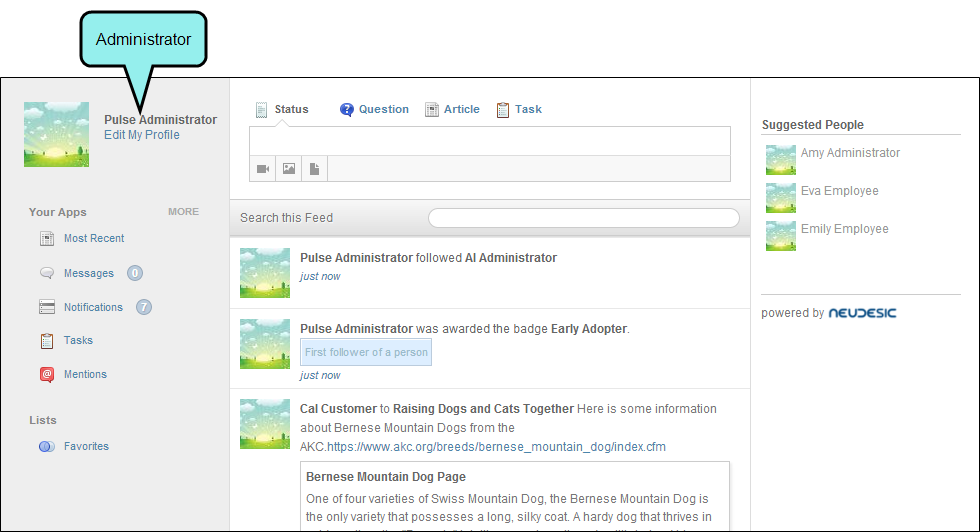
Select Pulse > Home to open your personalized Home page. The options available to you in the Home page depend on your user account's group membership. See Managing Groups.
examples
Home page options for members of the Administrators group:
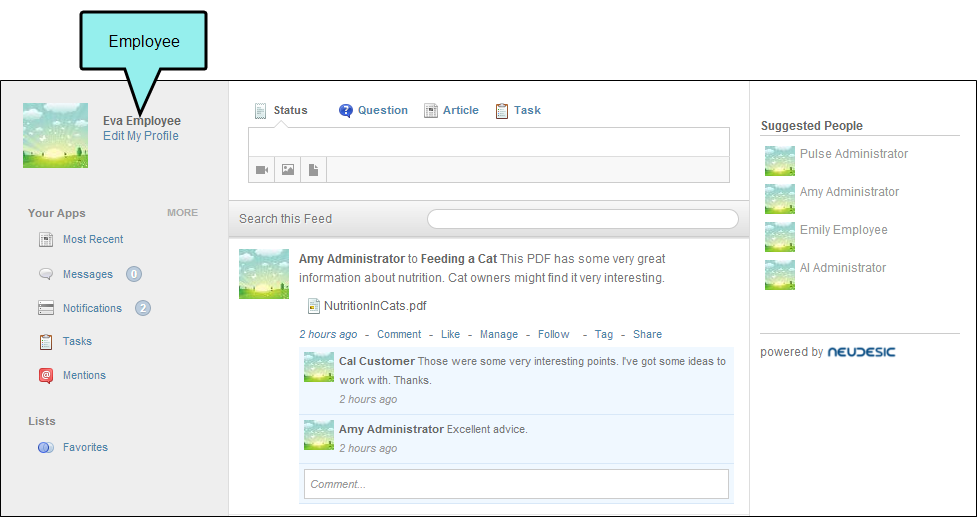
Similar options are available for members of the Employees group:
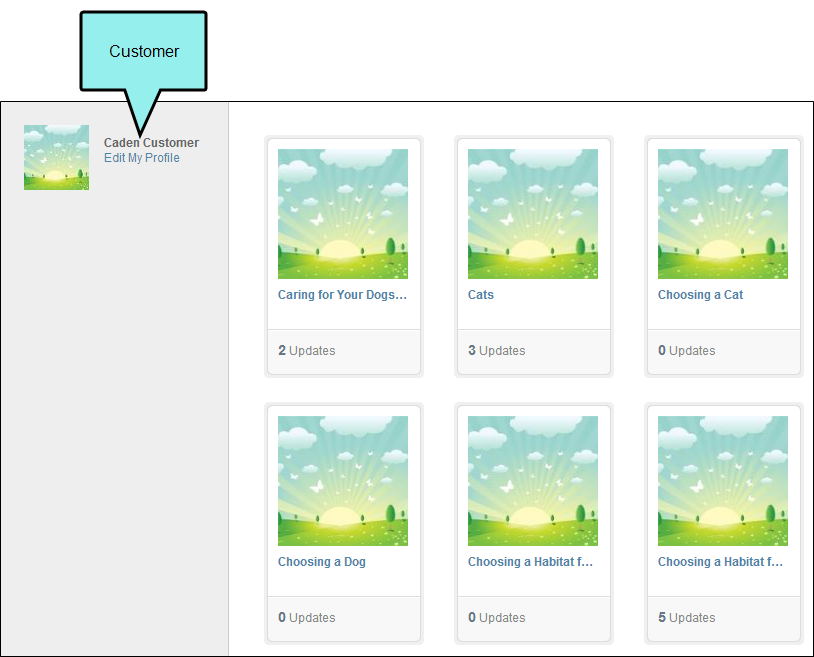
Limited options are available for members of the Customers group:
messages
Select Pulse > Messages to open the Messages page. This lets registered users create and send messages to other registered users.
profile
Select Pulse > Settings to open your Profile page. This lets you edit your profile and update your notification settings. The tasks that you can perform in this page are identical to the ones that you can perform when editing your profile from the embedded discussions forms.
timeline
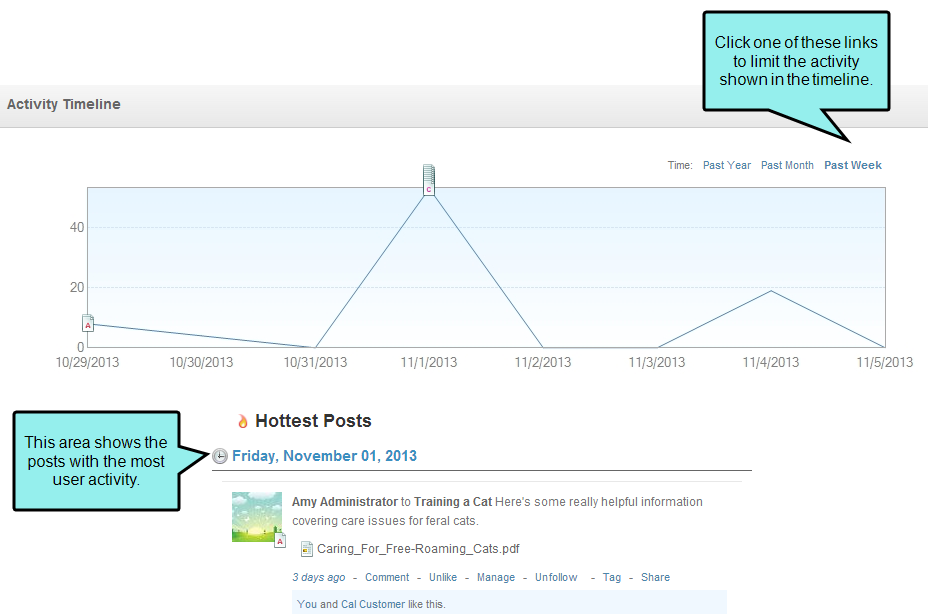
Select Pulse > Timeline to open the Activity Timeline page. This shows a list of Pulse activity in chronological order. You can click the links at the top right-side of the page to limit the activity shown in the timeline to the Past Year, Past Month, or Past Week. The posts with the most user activity appear under Hottest Posts.
logout
Select Pulse > Logout to quit the Pulse dashboard session.